
Retrieve more than 2,000 rows from a SharePoint list in Power Apps
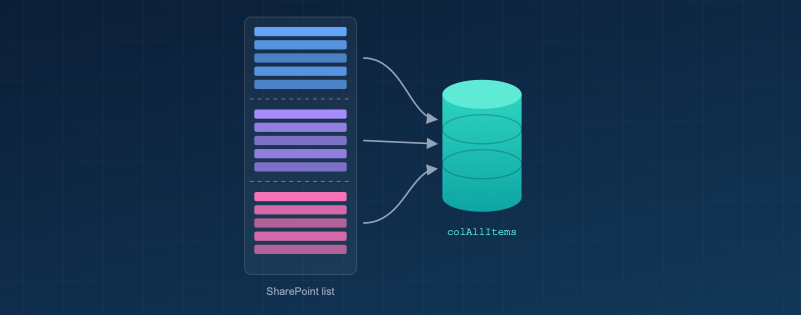
Power Apps returns at most 2,000 rows per query (500 by default). The fix is to split the list into batches, run a delegable query for each batch, and combine the results into one collection. Below are two ways to do it.
Before you start
- Raise the data row limit: Settings → General → Data row limit → 2000. Each batch must return fewer rows than this limit, or it gets cut off without warning.
- Index the column you batch on: List settings → Indexed columns. Index Created for Option 1 or NewID for Option 2. Lists with more than 5,000 items need this.
- Use your list's name: replace
DataSource/YourListNamewith it.
Option 1: Batch by Created date
This needs no changes to the list. Add the following to the OnStart property of your app:
Set(FirstCreated,First(Sort(DataSource,Created,SortOrder.Ascending)).Created);
Set(LastCreated,First(Sort(DataSource,Created,SortOrder.Descending)).Created);
Set(BatchSize,12); //number of months
Set(PageCount,RoundUp(DateDiff(FirstCreated,LastCreated,TimeUnit.Months)/BatchSize,0));

ClearCollect(
    colSeq,
    AddColumns(Sequence(PageCount,0,1),
        StartDate,DateAdd(FirstCreated,Value*BatchSize,TimeUnit.Months),
        EndDate,DateAdd(DateAdd(FirstCreated,(Value+1)*BatchSize,TimeUnit.Months),-1,TimeUnit.Seconds)
    )
);

Clear(colAllItems);
ForAll(
    colSeq As StartEnd,
    Collect(colAllItems,
        Filter(DataSource, Created >= StartEnd.StartDate And Created <= StartEnd.EndDate).ID
    )
);
How it works: the code finds the oldest and newest Created dates. It splits that span into windows of BatchSize months, then collects each window with a delegable Filter.
Notes:
- No single window can hold more than 2,000 items. If one does, lower
BatchSizeto 6, 3 or 1. .IDcollects only item IDs. Remove it to get full records.- If every item was created in the same month, or the most recent items are missing, add
+ 1to the end of thePageCountformula.
Option 2: Batch by ID
Each batch is capped at 1,000 items, so nothing can be cut off. This option needs one new column.
Why a new column? In Power Apps, SharePoint's built-in ID column only delegates =. A range filter such as ID > 1000isn't delegated. A regular Number column does delegate range filters.
- Create a new column in the SP list called NewID (type: Number) that copies the value of the ID field. Use a Power Automate flow (When an item is created → Update item) to fill it for new items. Run a one-time flow to backfill existing items. Don't use a calculated column, because it isn't delegable.
- Add the following to the OnStart property of your app:
Set(LastRowID,First(Sort(YourListName,ID,SortOrder.Descending)).ID);
Set(BatchSize,1000);
Set(PageCount,RoundUp(LastRowID/BatchSize,0));

ClearCollect(
    colSeq,
    AddColumns(RenameColumns(
            Sequence(PageCount,0,BatchSize),
            Value,
            Start
            ), End, Start + BatchSize
    )
);
Clear(colAllItems);
ForAll(
    colSeq As StartEnd,
    Collect(colAllItems,
    Filter(YourListName,NewID > StartEnd.Start && NewID <= StartEnd.End
    )
    )
);
How it works: the code finds the highest ID and builds ranges of 1,000 (0–1000, 1000–2000, and so on). It then collects each range with a delegable Filter. Gaps left by deleted items don't cause problems.
Which should I use?
- Option 1 when you can't change the list.
- Option 2 when you need every row, every time.
Tip: after loading, check that CountRows(colAllItems) matches the item count in SharePoint. If the list is large, load the data from a button or a screen's OnVisible instead of OnStart, so the app opens faster.